Getting Started
Get Started In 5 Steps
Prepare a cleaned segment-based street network in GIS.
Open the network with
File > Open.Choose an analysis under
Analysis, such asReach,Distance, orPoint Distance.Set the parameters, then click
Run.Review the map visualization, exported attributes, and generated fields.
Data Requirements
UrConnect works with segment models. Each line represents a street segment. The current application does not edit geometry, so topology, snapping, duplicate lines, and attribute joins should be resolved before opening the file.
Supported input formats:
Shapefile (
.shp)CSV files containing segment endpoint coordinates
TXT files containing segment endpoint coordinates
For Shapefile input, analysis results are written into the source file. For CSV/TXT input, UrConnect also creates a same-named Shapefile so results can be used in GIS.
Core Concepts
- Reach
The amount of network reachable from a source segment under a distance rule. The quantity can be segment length, junction count, or selected weighted attributes.
- Directional distance
A topological distance based on turns. Small angular changes can be ignored with an angle threshold.
- Junction distance
A distance based on the number of junctions of a selected degree, such as 3-way or 4-way intersections.
- Weighted reach and distance
Attribute-weighted calculations using numeric fields such as population, POI counts, floor area, or other joined GIS variables.
Interface Overview
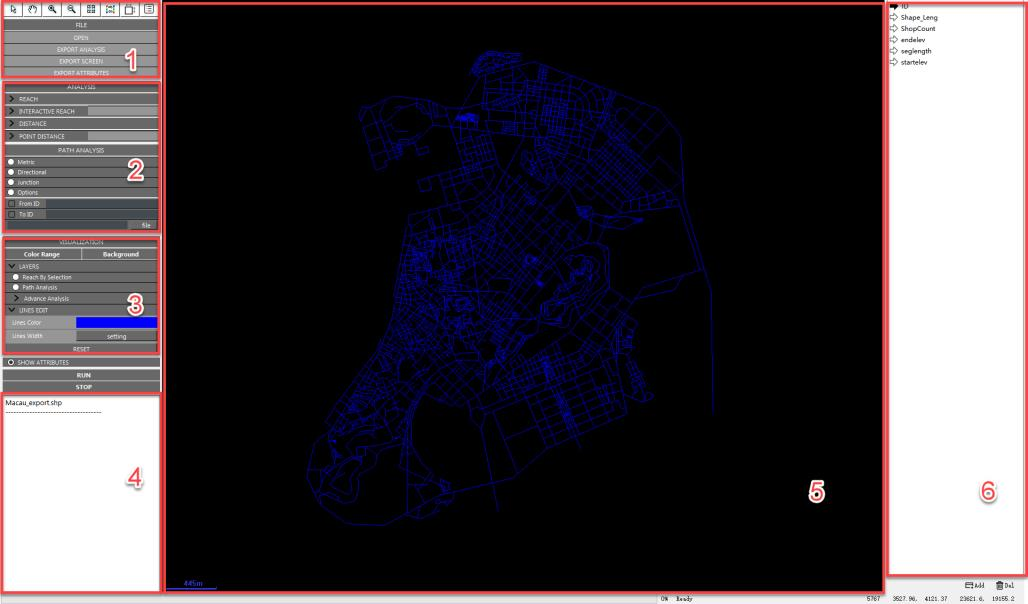
UrConnect desktop interface.
The left side contains tools, file operations, analysis modules, path analysis, visualization controls, and run/stop controls. The central map window displays the current network and analysis results. The right side lists numeric attributes from the opened file.